Choose a clear reference
Keep the whole subject visible with space for its motion. Start with a character, creature, object, or effect in the style you want.
AI sprite sheet generator
Animate a character, rotate an object, or bring an effect to life. Describe the motion. Get the animation, sprite sheet, and transparent frames together.
Explore real examples. Start with a motion idea or describe your own.
Use DreamLayer through MCP, the CLI, or your own API integration.
 Claude
 OpenClaw
 Hermes Agent
 Codex
Codex Cursor
Create your sprite sheet
Upload an image of a character, object, or effect. Describe how it should move and choose a loop or a single action.
Image to sprite animation
A sword swing, a spinning coin, an opening chest, or a full 360° character turn. Start with a reference and describe the movement and viewpoint you want.
Keep the whole subject visible with space for its motion. Start with a character, creature, object, or effect in the style you want.
Describe a custom movement or edit a motion idea. Choose a loop or a single action, then select 7–100 frames.
Play the animation and inspect its frame boundaries, edges, and identity. Download the PNGs and atlas, then set the playback timing in your engine.
Open the actual output
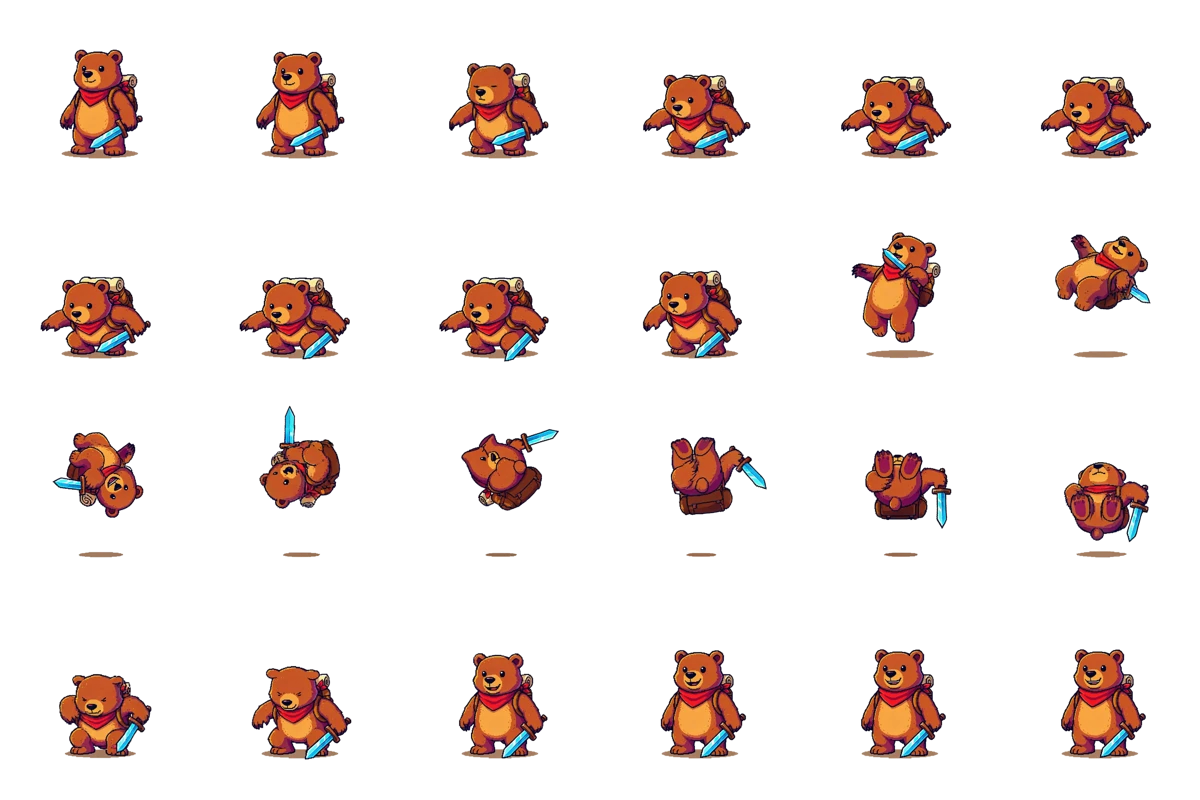
Take the jumping bear into your project. Download 24 frames, from crouch through somersault to landing, with the same frames shown in the animation.
One ZIP: transparent frames, sprite sheet, atlas and preview.
Download the bear bundle ↓Inspect at native size. These examples retain visible edge fringing and small ground remnants; some frames need cleanup before final game use.
Into your game
The output is standard PNG plus JSON. Slice the grid and configure playback in the engine you already use.
Set the sheet to Sprite (2D and UI), use Multiple mode, and slice by a 512 × 512 cell size in the Sprite Editor. Review the pivot and playback speed.
Unity sprite slicing guide ↗Use AnimatedSprite2D with a SpriteFrames resource. Add frames from the sheet, select the occupied cells, and set the animation timing.
Godot sprite animation guide ↗Use the individual frame PNGs or read the atlas rectangles. Adapt the metadata to your engine’s format and build transitions between separate actions.
Inspect the example atlas ↓Before you generate
Upload a reference image on this page, describe the animation, and choose a loop or a single action and 7–100 frames. Select Generate Sprite Sheet, then sign up or sign in. Your image, prompt, and settings carry into the DreamLayer App, where you can review and generate. The completed job delivers a ZIP with transparent PNG frames, a sprite sheet, atlas JSON, an animated preview, and import instructions. Review the result before game use.
Yes. Use an image you own or have permission to use, with the entire subject visible and space for movement. Characters, creatures, objects, and effects can be described in the request. A clear reference helps preserve the intended style and appearance.
Describe a custom action, such as a sword swing, jumping creature, spinning coin, opening chest, or an effect animation. Motion ideas such as walk, run, and idle are optional starting points. You can request broad subjects and movements, but generation quality varies; every requested result is not guaranteed.
You can request a full turn while the camera and pose stay fixed. Describe the rotation and choose Loop for a repeating turntable. With only one reference, the model must invent unseen side and back details, so inspect those views for consistency.
Yes. The bundle contains transparent 512 by 512 pixel PNG frames and a PNG sheet on a regular grid. The atlas describes each frame rectangle and the animation timing. Check edges and ground remnants against your game's background before import.
Yes. Import the PNG sheet into Unity's Sprite Editor and slice it by 512 by 512 cell size. In Godot, add frames from the sheet to a SpriteFrames resource. Set the timing for your animation and omit any unused grid cells. The included JSON is a frame and timing reference; it is not a Unity controller or a Godot scene.
The examples show the actual output quality. Pixel-art references can acquire softer edges or extra colors during generation. Review at your game's native resolution and use a pixel editor for palette or pixel-level cleanup when needed.
No. Choose Loop for repeating motion or Play once for a complete action with a beginning and end. Review the first-to-last-frame transition before relying on a loop. Faces, clothing, accessories, and other details can change. Transparent effects and fine details can need extra cleanup.
The minimum is 7 frames and the maximum is 100. Generation uses paid App credits, with the cost based on frame count. The App checks your current quote and balance before submitting. If you need credits, your draft stays saved through checkout. Free starter credits cannot be used for sprite generation. Agent API credits are separate from App credits.
The example previews and downloads on this page are free. You can prepare your image, animation prompt, and settings here, then sign up or sign in to continue in the DreamLayer App. Generating your own sprite sheet uses paid App credits. No API key is needed.
Jobs can take several minutes. The App saves the request so you can return to the same job if your connection drops. Credits are reserved when generation starts and restored if it fails without delivering the bundle. Check the saved request before starting another generation.
This workflow generates an animation from one character reference and packages the result. It does not take an existing collection of sprites for custom packing, split arbitrary sprite sheets, or edit individual pixels.
Your character’s next move