
Keep refining in one chat
Build on the last result or return to an earlier version. Your product stays attached to the conversation.


Select products from Akeneo, refine the results through follow-up messages, and choose what gets saved back.
Tell DreamLayer what to change. It picks the right image model for the task.
ABLO-4CDC5F30AE59
 ✓ Selected for editing
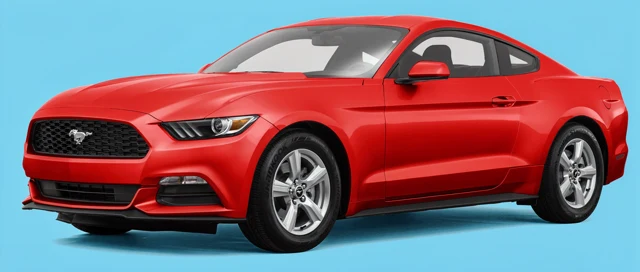
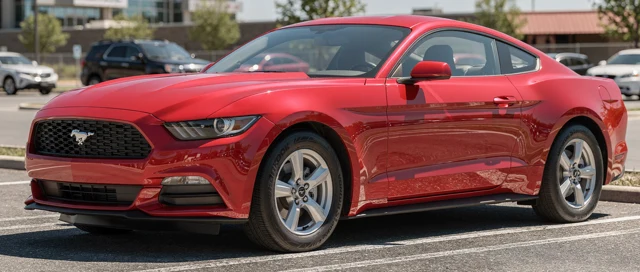
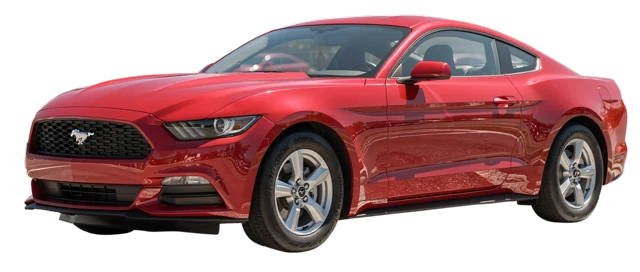 Image chat
Build on the last result or return to an earlier version. Your product stays attached to the conversation.
DreamLayer selects from leading image models for the task. You describe the change and keep working in the same chat.
Edit selected products together, review a preview for each one, and decide individually what gets saved.
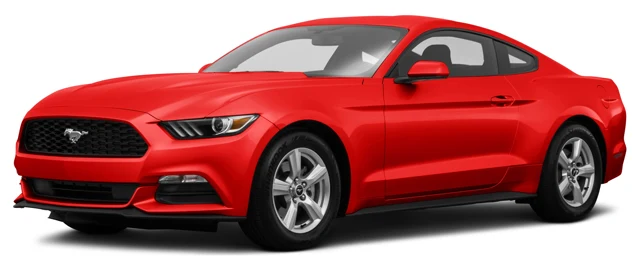
Start with a product image, then build on each result. Ask for a blue background, try a parking lot, then turn that version into a cutout. Each follow-up uses the previous image.
The original image and the actual results from this conversation.
The starting point in the catalog.
Start with a simple change.
Continue with a sunny parking lot.
Refine that result into a cutout.
Choose the product images you want to edit and describe the change once. Each product gets its own preview. Review the results and decide separately which ones to apply.
From a single listing to a group of products, start with the images your team already uses.
Give an existing product photo a clean background, then review it before updating the listing.
Try a new setting, compare versions, and keep refining the one that fits your campaign.
Select multiple catalog images, describe the change once, and review a separate result for each product.
Our demo runs inside a self-hosted Akeneo Community Edition installation. Your product images, editing conversation, and review stay in the same workspace.
An independent DreamLayer integration. We will check your edition, version, and setup before confirming support for a pilot.
Akeneo already supports AI-powered image transformations. DreamLayer adds a deeper visual workflow for teams that want to keep refining images through conversation, work across leading image models, and review each product result separately before saving it back.
DreamLayer handles model selection and routing behind the scenes, so your team does not have to choose and maintain separate AI providers.
Smart Edit is designed for individual image transformations such as backgrounds, cropping, aspect ratios, and prompt-based edits.
DreamLayer is designed for ongoing visual work. Start with a product image, request a change, continue refining the result through follow-up messages, compare previous versions, and choose which version gets saved.
Different image models are better at different tasks.
DreamLayer gives your Akeneo workflow access to leading image models through one integration and picks the appropriate model based on what you ask it to do.
No. DreamLayer is an independent integration for Akeneo and is not affiliated with or endorsed by Akeneo.
The current integration is being developed and tested around supported Akeneo environments. Contact us with your Akeneo edition and setup, and we can confirm compatibility.
Yes. You can continue from a previous result with follow-up instructions instead of starting over.
For example, you can change a background, move the product into a lifestyle scene, refine that scene, and then return to an earlier version.
Yes. Select multiple products, describe the change once, and DreamLayer generates a separate result for each one.
You can review, refine, and approve each product individually.
No. You review the generated result before deciding what gets saved back to Akeneo.
Your existing product images remain under your control.
Yes. We are working with Akeneo users and implementation teams to understand their image workflows and prioritize the features that are most useful in production.
See how DreamLayer edits your catalog images through chat, then review the result before saving it back to Akeneo.
Request an Akeneo demo Tell us your platform version and the image workflow you want to improve.